How to Setup IPTV on Firestick in 2026: Complete Step-by-Step Guide
Learn how to install and setup IPTV on Amazon Firestick in under 5 minutes. Works with Firestick 4K, 4K Max, and Fire TV Cube. Updated for 2026.
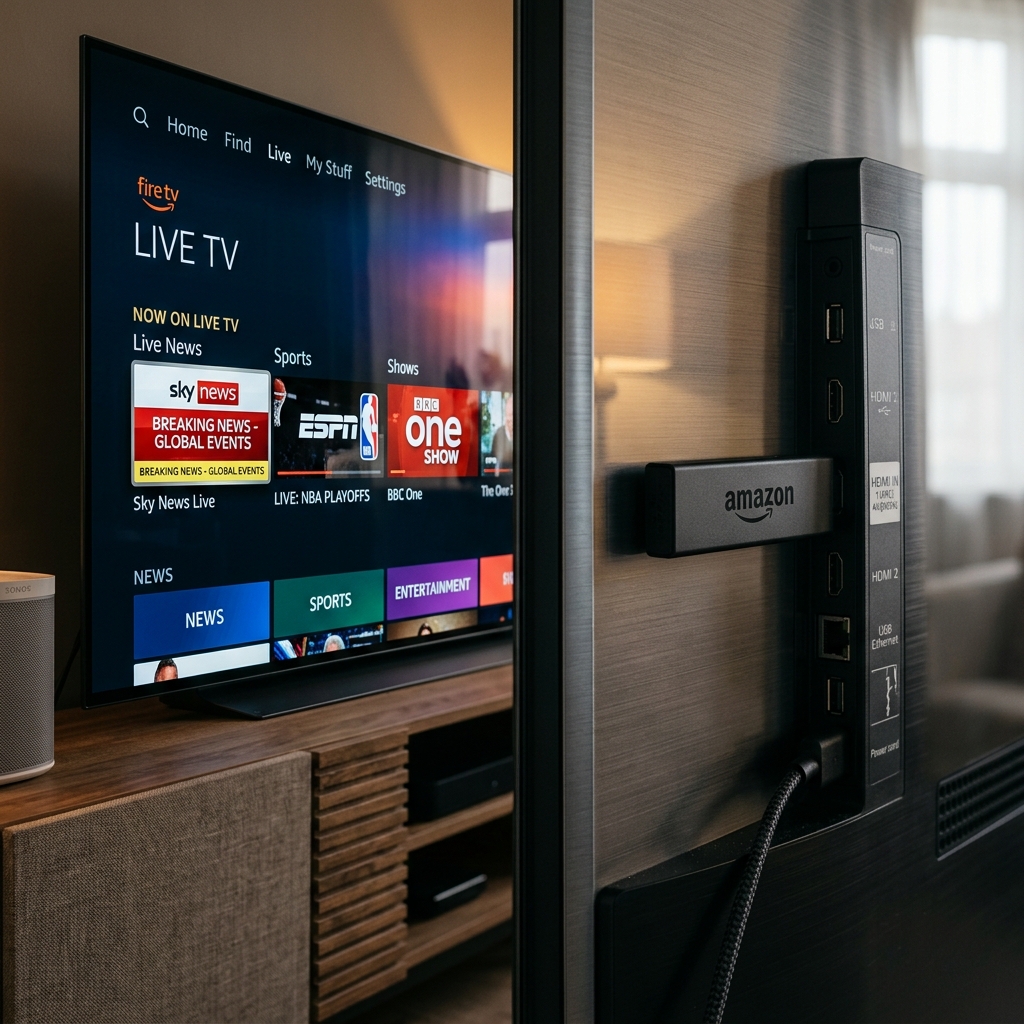
Why Firestick is the Best Device for IPTV
Amazon Firestick remains the most popular device for IPTV streaming in 2026, and for good reason. It’s affordable, powerful, and incredibly easy to set up. Whether you have the Firestick 4K, 4K Max, or Fire TV Cube, this guide will walk you through the complete setup process.
What You’ll Need
Before we begin, make sure you have:
- An Amazon Firestick (any model)
- A stable internet connection (25 Mbps+ recommended for 4K)
- An active IPTV subscription with server credentials
- A TV with an available HDMI port
Step 1: Enable Apps from Unknown Sources
- Navigate to Settings on your Firestick home screen
- Select My Fire TV (or Device)
- Choose Developer Options
- Enable Apps from Unknown Sources
This step is essential for installing third-party IPTV apps that aren’t available in the Amazon App Store.
Step 2: Install the Downloader App
- Go back to the Firestick Home Screen
- Select the Search icon (magnifying glass)
- Type “Downloader” and select it from results
- Click Download/Get to install
Step 3: Download IPTV Smarters Pro
- Open the Downloader app
- In the URL field, enter the IPTV Smarters Pro APK URL (provided by your IPTV service)
- Click Go and wait for the download to complete
- When prompted, click Install
Step 4: Configure Your IPTV Service
- Open IPTV Smarters Pro from your apps
- Select “Login with Xtream Codes API”
- Enter your credentials:
- Server URL: The server address from your subscription email
- Username: Your unique username
- Password: Your unique password
- Click Add User
Step 5: Start Streaming!
Once logged in, you’ll see categories for:
- Live TV — Browse 40,000+ live channels
- Movies — Access 250,000+ on-demand titles
- Series — Binge-watch your favorite shows
- Catch-Up — Watch programs you missed
Pro Tips for the Best Experience
- Use Ethernet: For the most stable 4K streaming, consider a USB-to-Ethernet adapter
- Clear Cache Regularly: Settings > Applications > Manage Installed Apps > IPTV Smarters > Clear Cache
- Update the App: Keep your IPTV app updated for the best performance
- Use a VPN: For additional privacy during streaming
Troubleshooting Common Issues
Buffering
- Check your internet speed (25 Mbps minimum for 4K)
- Try switching to a wired connection
- Clear the app cache
- Try a different server if available
App Won’t Install
- Ensure “Apps from Unknown Sources” is enabled
- Free up storage space on your Firestick
- Restart the device and try again
Conclusion
Setting up IPTV on your Amazon Firestick is quick and easy — the entire process takes under 5 minutes. With the right IPTV subscription, you’ll unlock a world of 40,000+ live channels and 250,000+ on-demand titles in stunning 4K quality.
Need help? Contact our 24/7 support team for instant assistance with your Firestick setup.
Frequently Asked Questions
❓ How do I set up IPTV on Firestick?
Answer: Install an IPTV player like TiviMate or IPTV Smarters from the Amazon Appstore, then enter your provider credentials using the Xtream Codes API login method.
❓ What is the best IPTV app for Firestick?
Answer: TiviMate Premium and IPTV Smarters Pro are the most popular and reliable IPTV apps for Firestick, offering strong EPG support and smooth live TV navigation.
❓ Do I need to jailbreak my Firestick for IPTV?
Answer: No. You simply enable Apps from Unknown Sources in your Firestick settings to install IPTV apps that are not available directly on the Amazon Appstore.
❓ Can I watch 4K content on Firestick with IPTV?
Answer: Yes. Firestick 4K and 4K Max support 4K HDR playback. With a premium IPTV provider offering 4K streams, you can enjoy ultra-high-definition content.
❓ Is a VPN needed for IPTV on Firestick?
Answer: A VPN is highly recommended to bypass ISP throttling and maintain consistent streaming speeds, especially during popular live sports events.
Ready to Start Streaming?
Get instant access to 40,000+ live channels and 250,000+ movies & series in 4K Ultra HD. Start your free 24-hour trial today.